Step 2 – Open the downloaded .csv file (in Microsoft Excel format) from your Downloads folder. [The .csv file will be named as CartLine_123456…abc.csv]
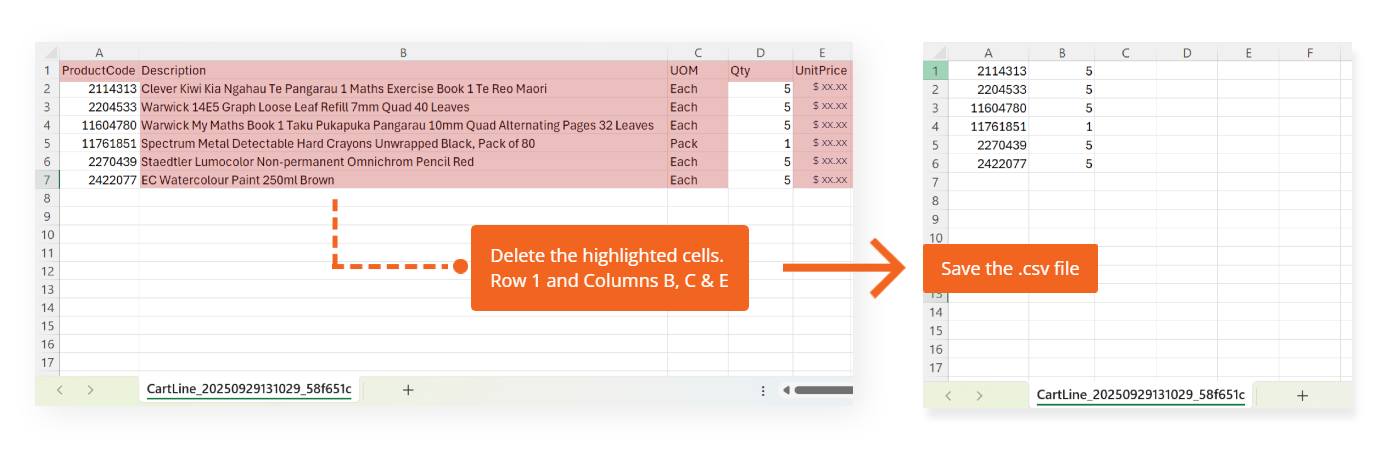
Step 3 – On the Excel file, delete Row 1 [that says ‘ProductCode, Description, UOM….] & delete Columns B (Description), Column C (UOM) & Column E (UnitPrice). Once deleted, save the file
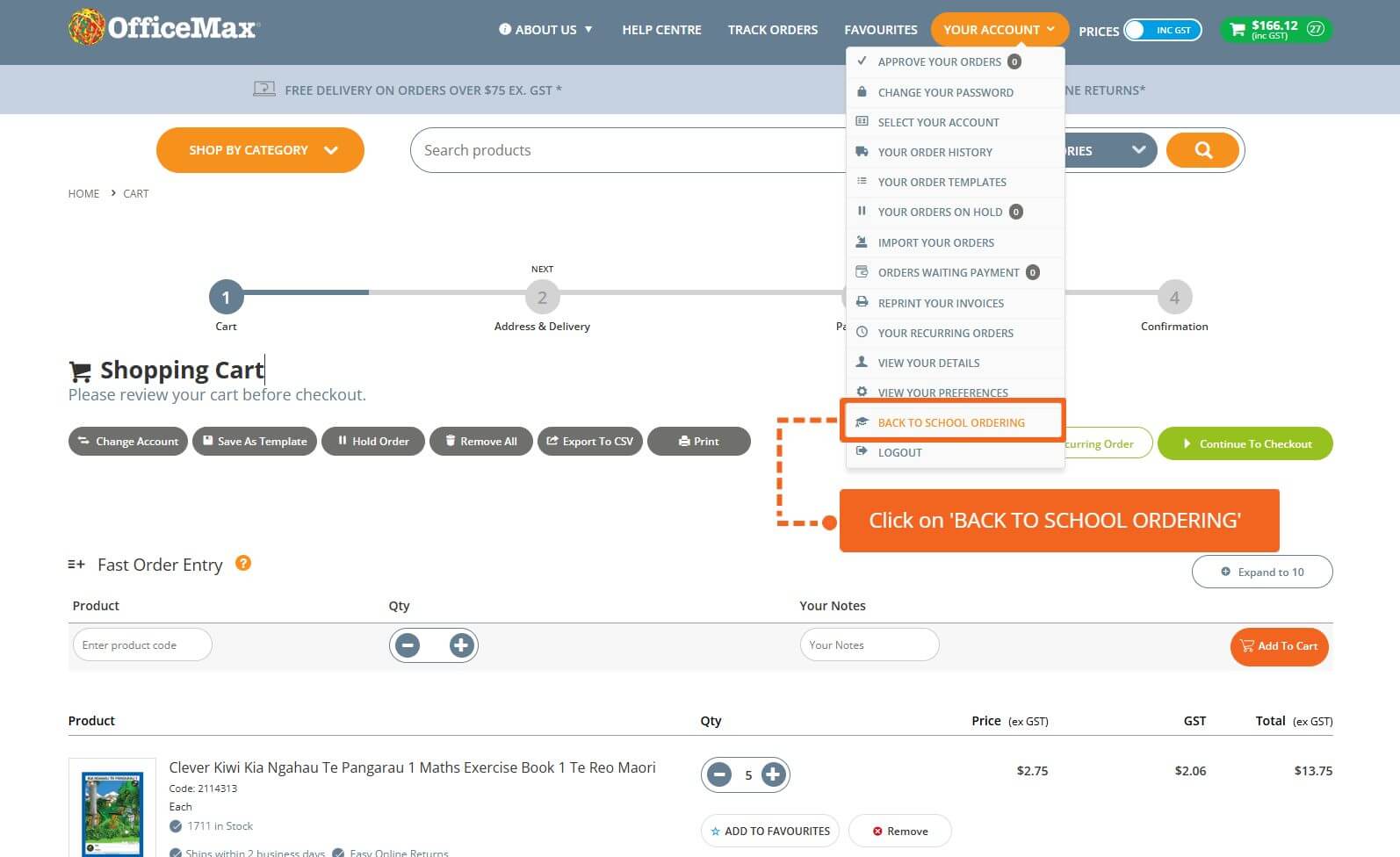
Step 4 – Go back to your ‘Shopping Cart’ page, under the ‘YOUR ACCOUNT’ dropdown, click on ‘BACK TO SCHOOL ORDERING’
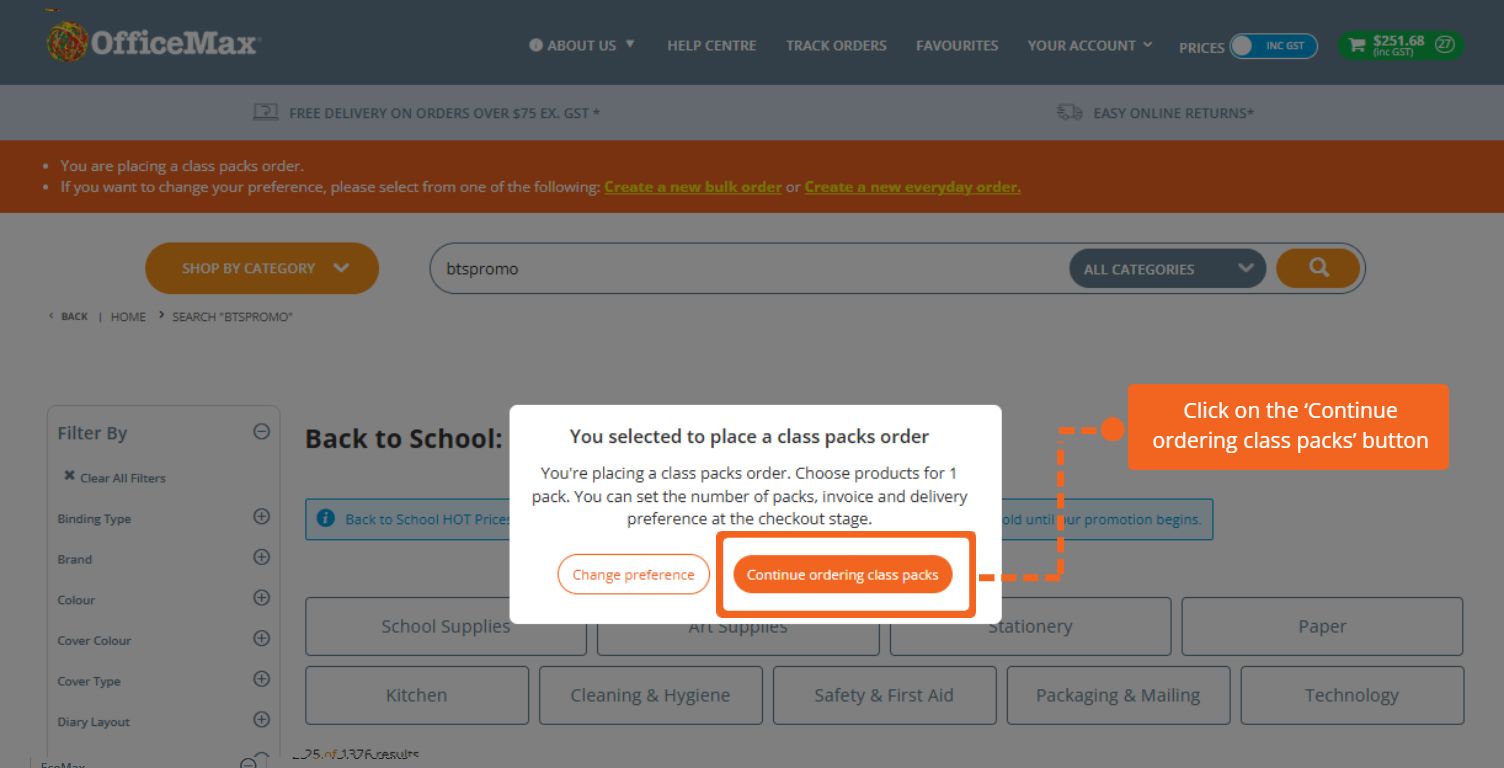
Step 5 – Choose either Order bulk or Order class packs as per your requirement, and ‘Create a new (bulk or class packs) order’ accordingly

Step 6 – Click on the ‘Continue ordering class packs’ button in the pop-up box
Step 7 – Click on ‘IMPORT YOUR ORDERS’ under the ‘YOUR ACCOUNT’ dropdown

Step 8 – Click on the ‘Select Files’ button to upload the .csv file you had edited and saved earlier in your Download folder
Step 9 – Click on the ‘Import Files’ button, which will add* your everyday cart items to the ‘bulk or class packs’ order cart.
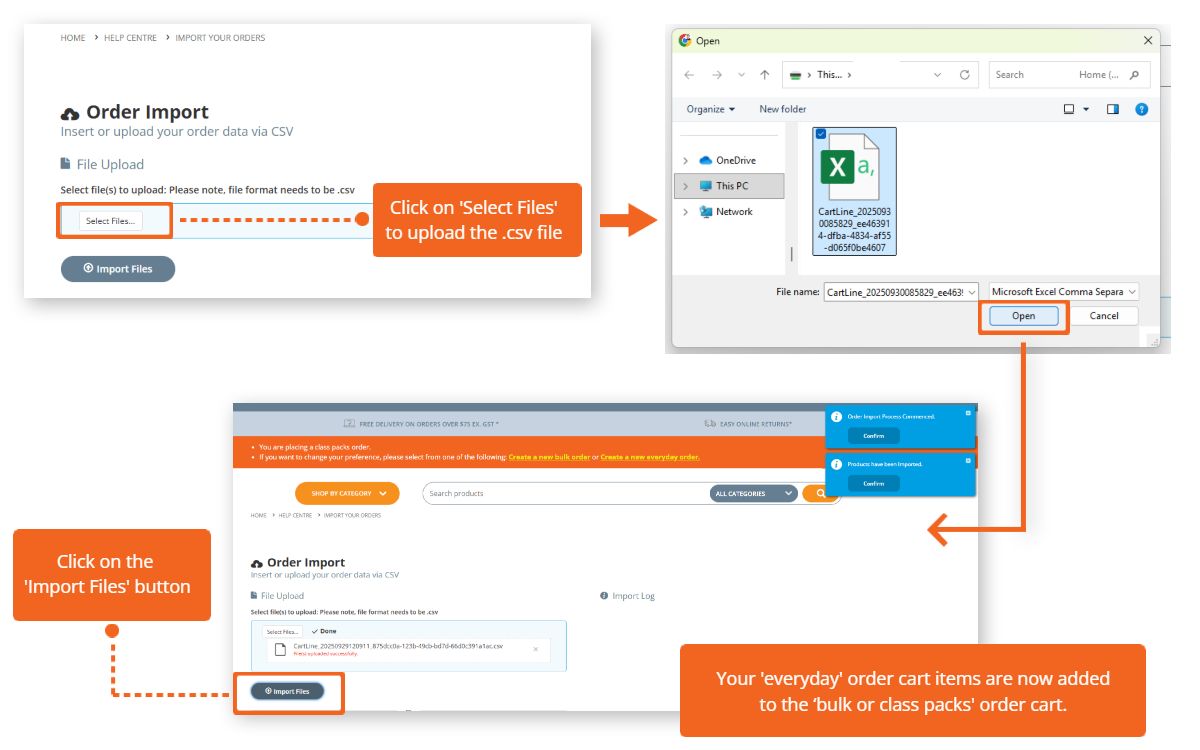
*Please note, if items are in the cart from your previous activity, your imported items will be appended/added to the cart.
How to move your cart items from a bulk or class packs order to everyday order
- Follow the Steps 1 to 3 as shown above
- Go to the OfficeMax Home page, select 'Create a new everyday order’ in the orange ribbon
- Click IMPORT YOUR ORDERS under ‘YOUR ACCOUNT’ (Follow the Steps 7 to 9 as shown above)
